
LLM-notebook: turn a YouTube video into material you can question
For a lot of us, YouTube is the classroom. From linear algebra to programming basics, whole courses are sitting there in the open, and many of them are very good.
But video is an awkward thing to study from:
- It is hard to find your way back. To return to the point the instructor made ten minutes ago, you drag the scrubber and hope your memory lands on it.
- It is hard to ask. When a sentence does not land, there is nothing to ask; and the comments are answering someone else's question, not yours.
- It is hard to extract. To keep a passage, you type it out by hand while the video plays on.
So a lecture often ends with low efficiency and no real grip on the material — just a vague feeling of having followed it.
Turn a YouTube video into material you can question
To make video work better for studying, LLM-notebook takes one approach: pair it with AI so a video becomes something you can interact with.
Open one of these materials and you get three things:
- On top, the video player; the video plays there as usual.
- Under it, the video's subtitles — the raw material the AI reads the video from.
- On the right, the AI chat: ask whenever something is unclear. Answers cite the subtitle text, and each citation jumps to that moment in the video.
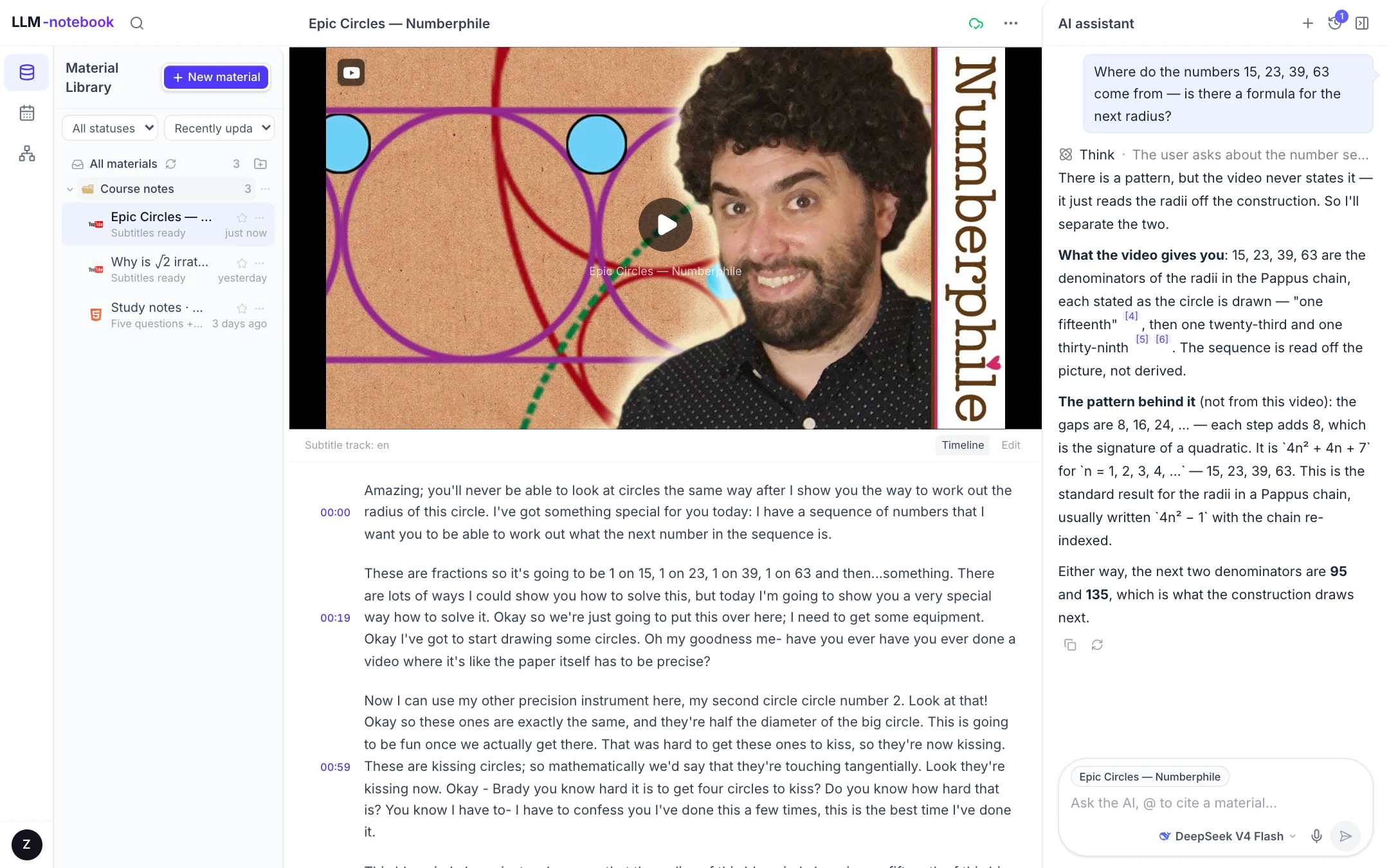
So the things that used to be awkward now have an answer:
- Want to go back to one sentence? Click its timestamp and the video jumps there — no more scrubbing and guessing.
- Did not follow a paragraph? Select that subtitle and ask about it; the answer points back to the original wording.
- Want to keep the important parts? Turn the subtitles into your own notes, instead of typing while you watch.
How to use it
- Go to Material Library → New material → Website / URL, paste the YouTube link, then Confirm import.
- When parsing finishes, the workspace shows the player with the subtitles underneath.
- While watching:
- Ask about the video in the AI panel on the right;
- or select a passage in the subtitles and ask about that passage specifically.
- Answers mark the wording they rely on: click the
[N]in an answer and it jumps back to the cited paragraph and highlights it.
A few situations students actually run into
| The moment | What to do |
|---|---|
| A segment you have replayed several times and still do not follow | Select those subtitles and ask "what is this part actually saying?" |
| Something worth keeping while you watch | Turn the subtitles into your own note instead of retyping them |
| You have finished a course and want to review | Ask the whole transcript: "what are the key exam points in this course?" |
| You want to check one concept | @ this material and let it explain using the video's own wording |
| You only want a quick pass first | Ask for the subtitles to be organized into an outline |
Whatever you ask, the answer stays traceable: conclusions point back to specific paragraphs in the subtitles, not to a general impression of the model.
Get started
Project home: llm-notebook.com
Sign up with Google, WeChat or email (registration page). New users get a free 14-day trial plus $0.69 of token credit.
If you run into any problem while using it, you can submit feedback from Account → Feedback, or contact us directly by email at llm-notebook@intlinkbridge.com. Thanks for your support and feedback!
Keep reading
 Agent
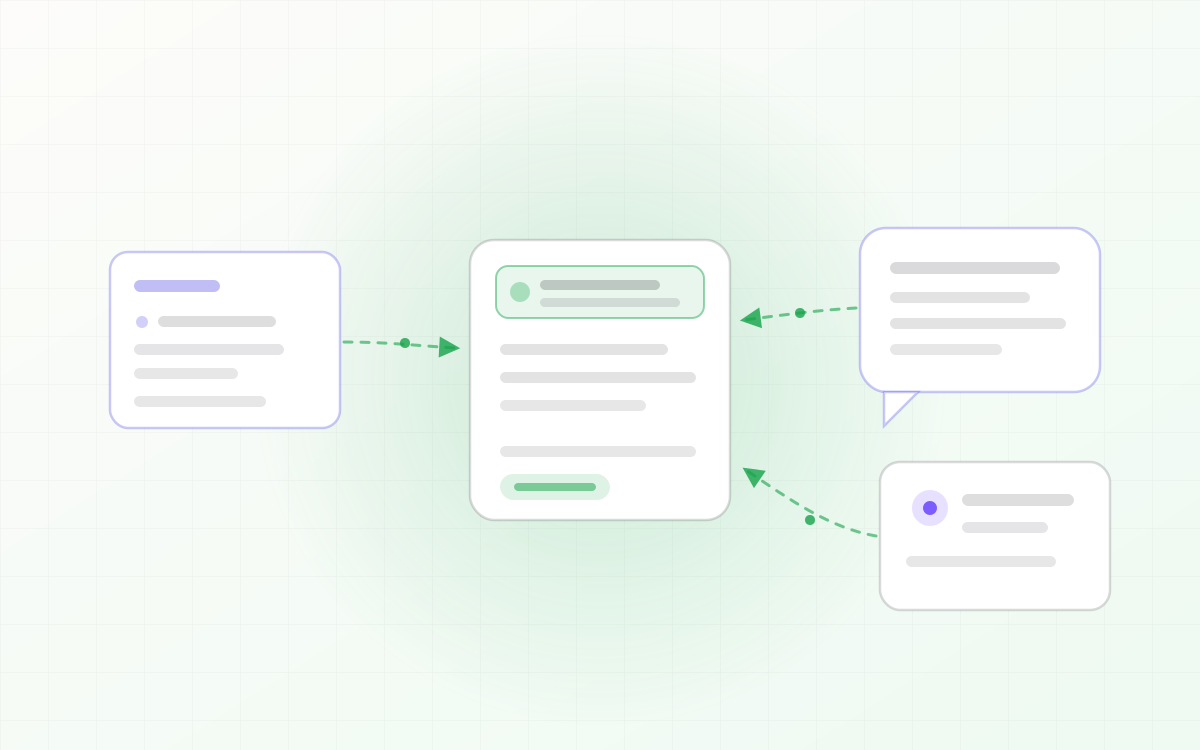
AgentLLM-notebook: 将 Agent 会话沉淀为知识资产
Agent 会话里往往藏着很有价值的结论:排查出的原因、定下的方案、草稿里的取舍。但它们只活在会话里,会话一关就散了。LLM-notebook 让 Agent 把会话收藏成素材——一句话,整段会话沉淀为你的知识资产。
Read post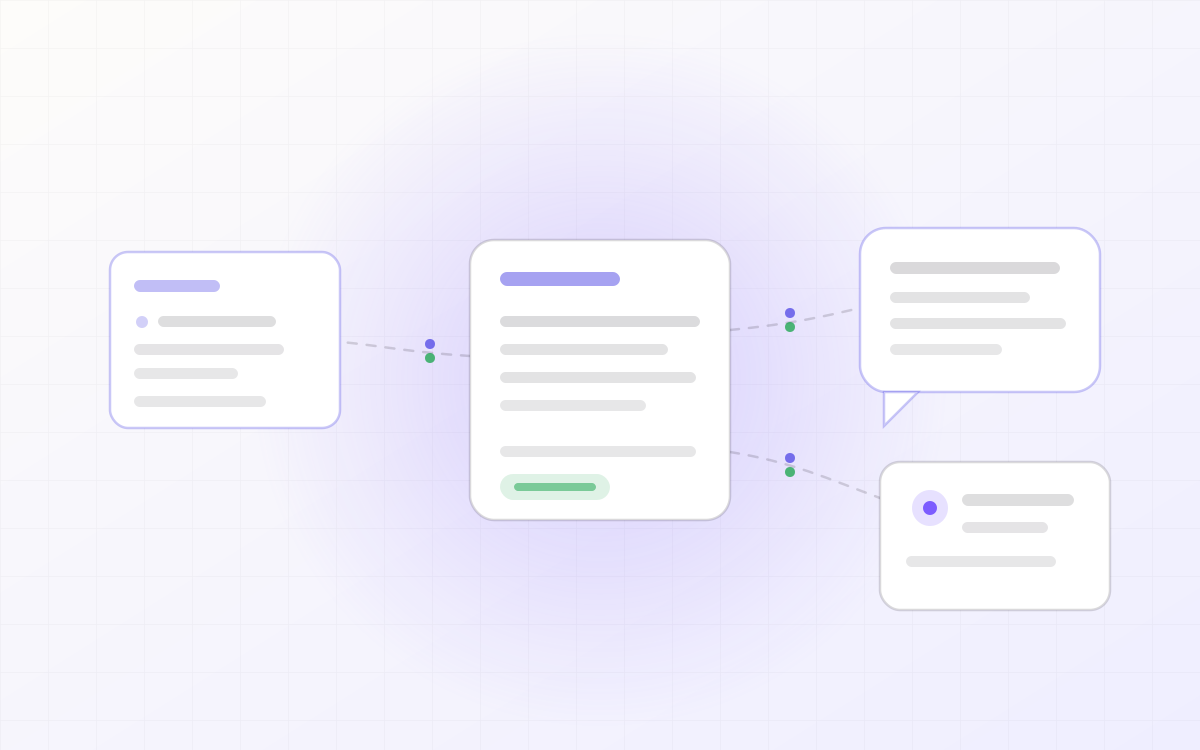 Agent
AgentLLM-notebook: Agent 的共享知识后端
你的 Agent 不止一个,但它们不共享同一份上下文:换个工具,之前交代过的背景要重新讲一遍。LLM-notebook 把素材仓开放给外部 Agent,作为它们的共享知识后端——装上 skill、点一次「允许」,它就能检索并读取你的素材,也能把会话收藏回来。
Read post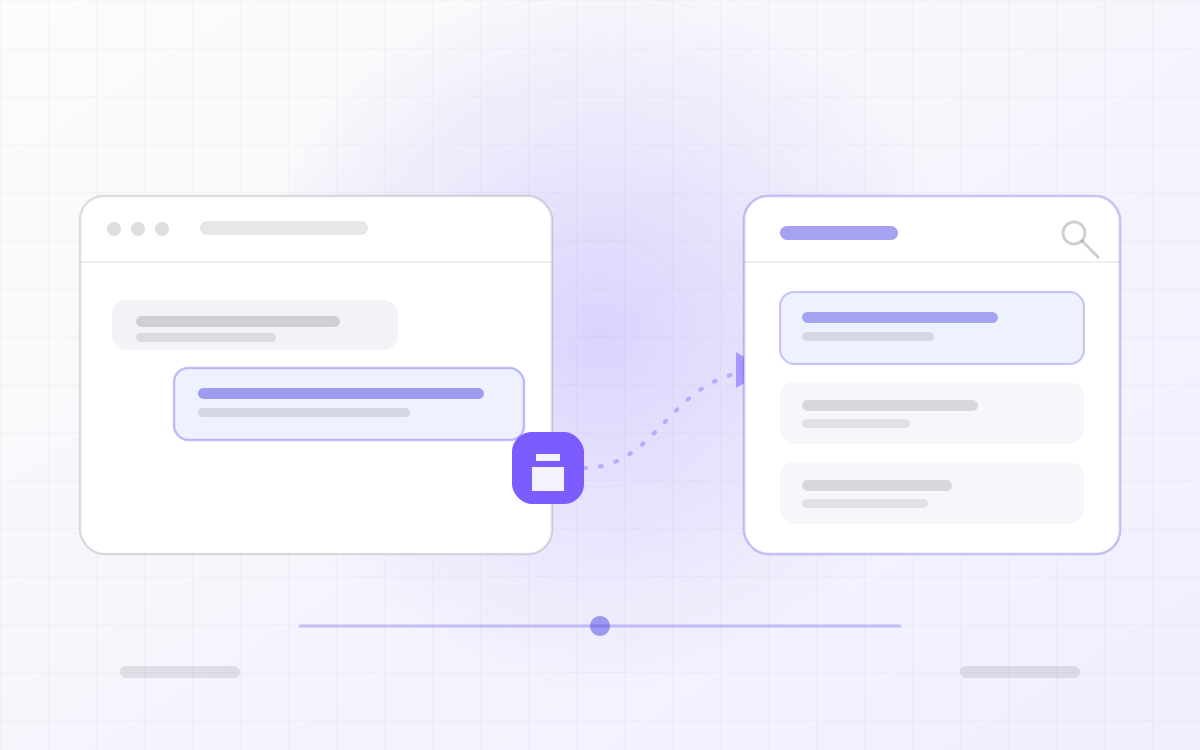 Collect
LLM-notebook: turning flowing LLM conversations into knowledge assets
A sharp answer in ChatGPT, a workable engineering practice in Gemini, reusable reference material in Qwen — and a week later it is scattered across four chat histories, impossible to search and impossible to edit. LLM-notebook collects LLM conversations into one library and settles them into notes you can read, export and share.
Read post