
LLM-notebook: turning flowing LLM conversations into knowledge assets
Has this ever happened to you?
We get a sharp answer in ChatGPT, a proven engineering practice in Gemini, high-frequency reference material in Qwen… and a week later, when we want to reuse any of it, we find it scattered across chat histories — across several platforms' chat histories. Want to search it: nothing. Want to adapt it: nowhere to put it. Want to organize it: copy and paste, one block at a time 🤯.
LLM-notebook is here
Project home: llm-notebook.com
To fix the pain of collecting and organizing LLM conversations, LLM-notebook gives you a shortcut for saving them. It helps you:
-
Pick a chat like picking fruit
With the companion Chrome / Edge extension, when you see an answer worth keeping on ChatGPT, Gemini, Qwen, Kimi and other mainstream chat pages, one click picks it up. No more copy-paste, and the original formatting survives as far as possible. Everything funnels to one place: whatever you work out in whichever model ends up in the same library.
-
Let conversations settle into knowledge
A conversation is fragmented; a note is systematic. LLM-notebook has a rich-text and Markdown editor built in. Collect a conversation, then organize and settle it into a note you can read any time. Notes export and share online in a couple of clicks.
How to use it
- Download the LLM-notebook browser extension. It is published on the Chrome and Edge stores (reachable from China).
- Register and sign in. Open the registration page (llm-notebook.com/login), create an account and sign in. You land on the notebook home (llm-notebook.com/note):
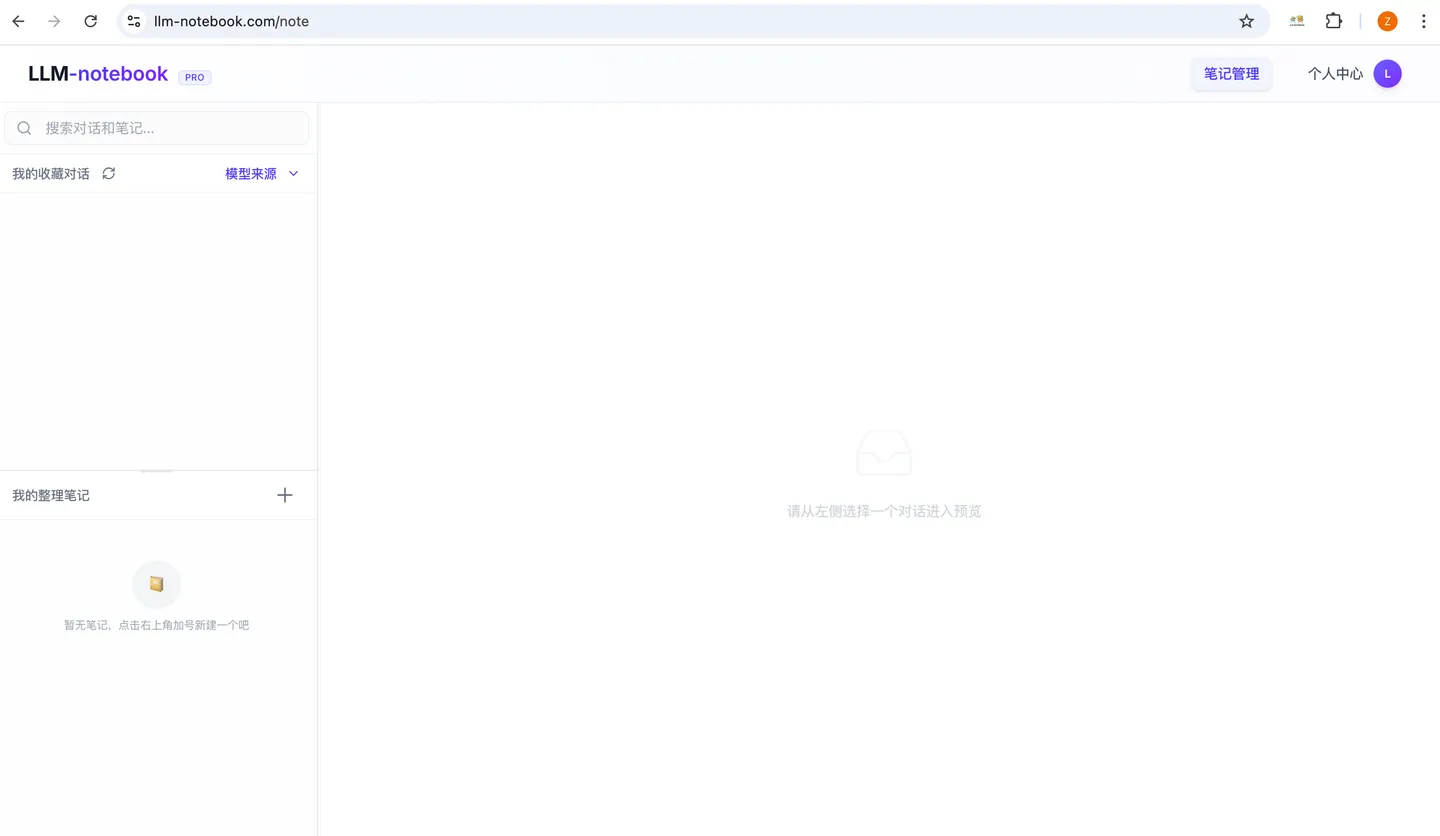
Collecting a conversation
Go to the chat platform you use and collect a conversation. Qwen Chat as the example:
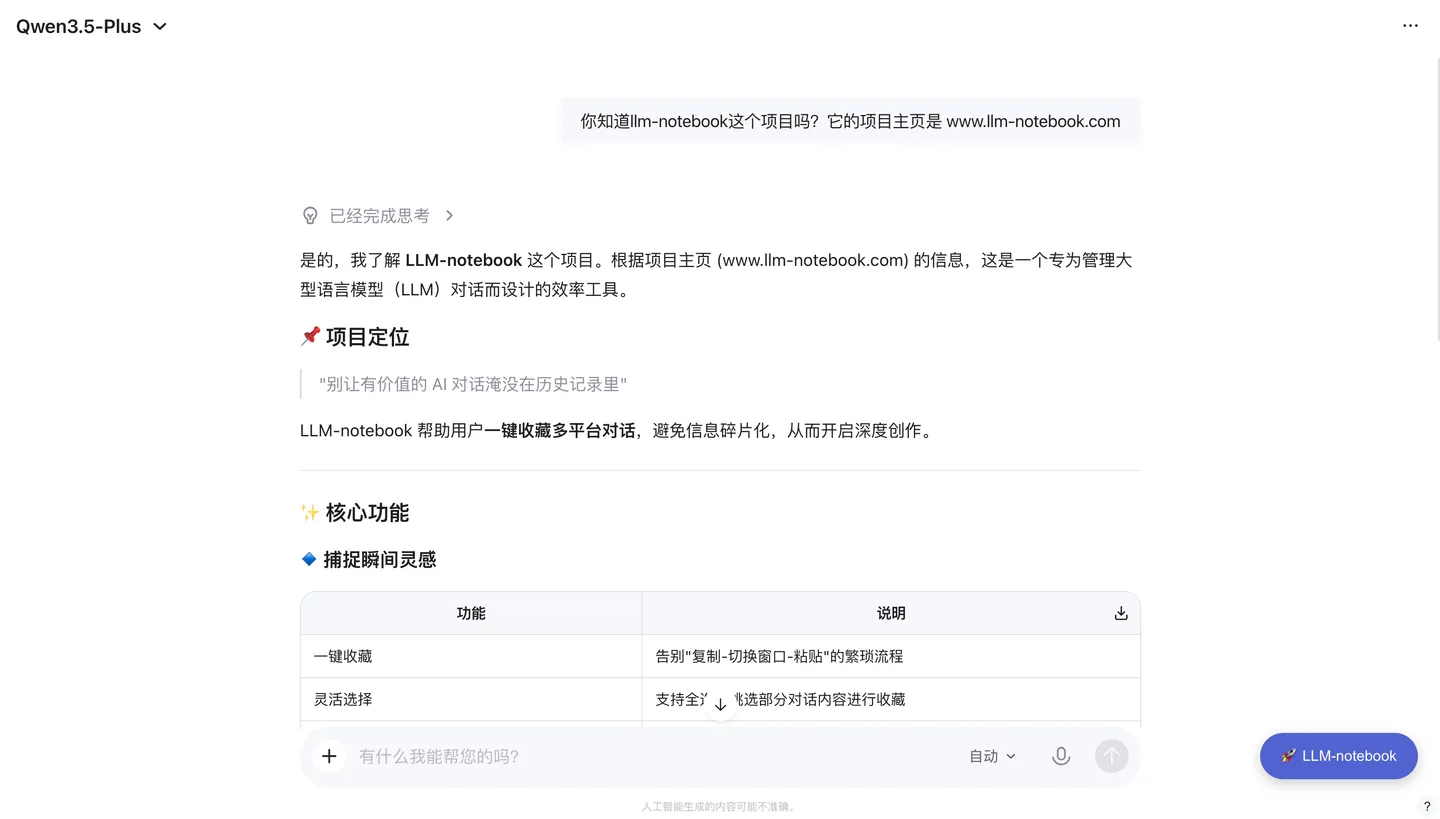
See the purple LLM-notebook button in the bottom-right corner? That is the extension you installed. Click it and tick the messages you want to collect:
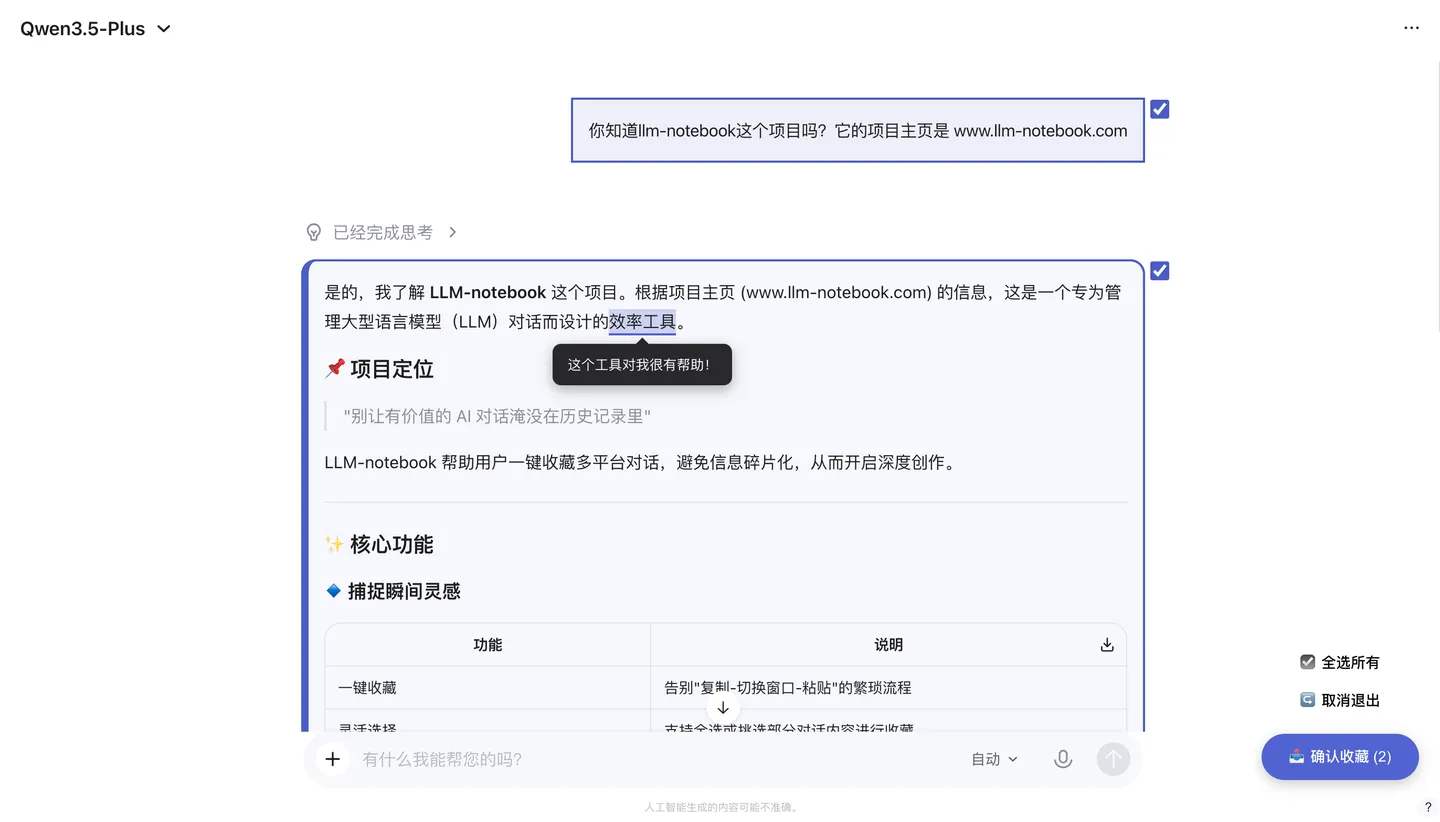
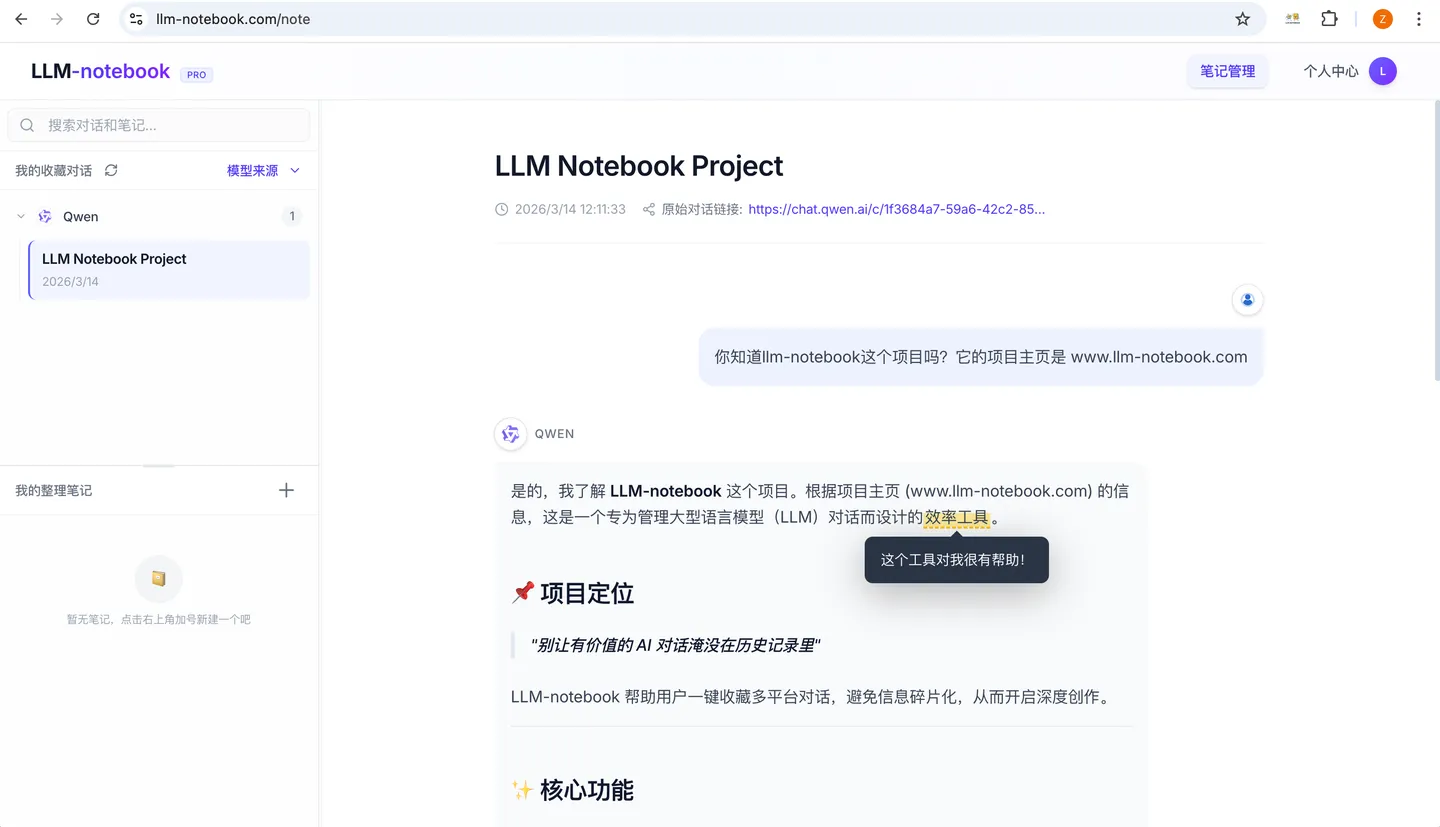
Feedback
If you run into any problem while using it, you can submit feedback from Account → Feedback, or contact us directly by email at llm-notebook@intlinkbridge.com. Thanks for your support and feedback!
Let LLM-notebook help you turn a flowing conversation into a fixed asset.
Keep reading
 Changelog
Changelog
From the first version on main to today, logged week by week. Every entry comes from a real commit — features, but also the mistakes and the rollbacks.
Read post Product
LLM-notebook: the notebook for the AI era
In the AI era information is never scarce; what is scarce is information you can understand, find and reuse. Notes make AI understand you, and AI brings your notes to life. LLM-notebook is a notebook for the AI era: four kinds of material in one place, answers with sources, and an Agent that can read and write. A product overview.
Read post