
LLM-notebook: turn what you have read into a quiz you can practise
Having seen something is not the same as having learned it. A quick and effective way to check your understanding is to make a quiz from it.
LLM-notebook can now create a quiz from saved articles, courses or notes that you can answer directly. After you finish, AI grades and explains it. If something is still unclear, you can keep discussing it with AI.
It fits situations like these:
- you have just finished a long article or report and want to check what actually stayed;
- you want a quick self-test before an exam;
- you have completed a training session and need to confirm what you understood;
One: make a quiz
With the source material open in the workspace, describe your quiz requirements in the chat box. For example:
Make a quiz from this material: 10 questions, medium difficulty, half multiple choice and half short answer, 100 points in total, passing score 60.
If something is missing, AI asks one short round of questions first. The quiz supports single choice, multiple choice, true/false, fill-in-the-blank and short answer.
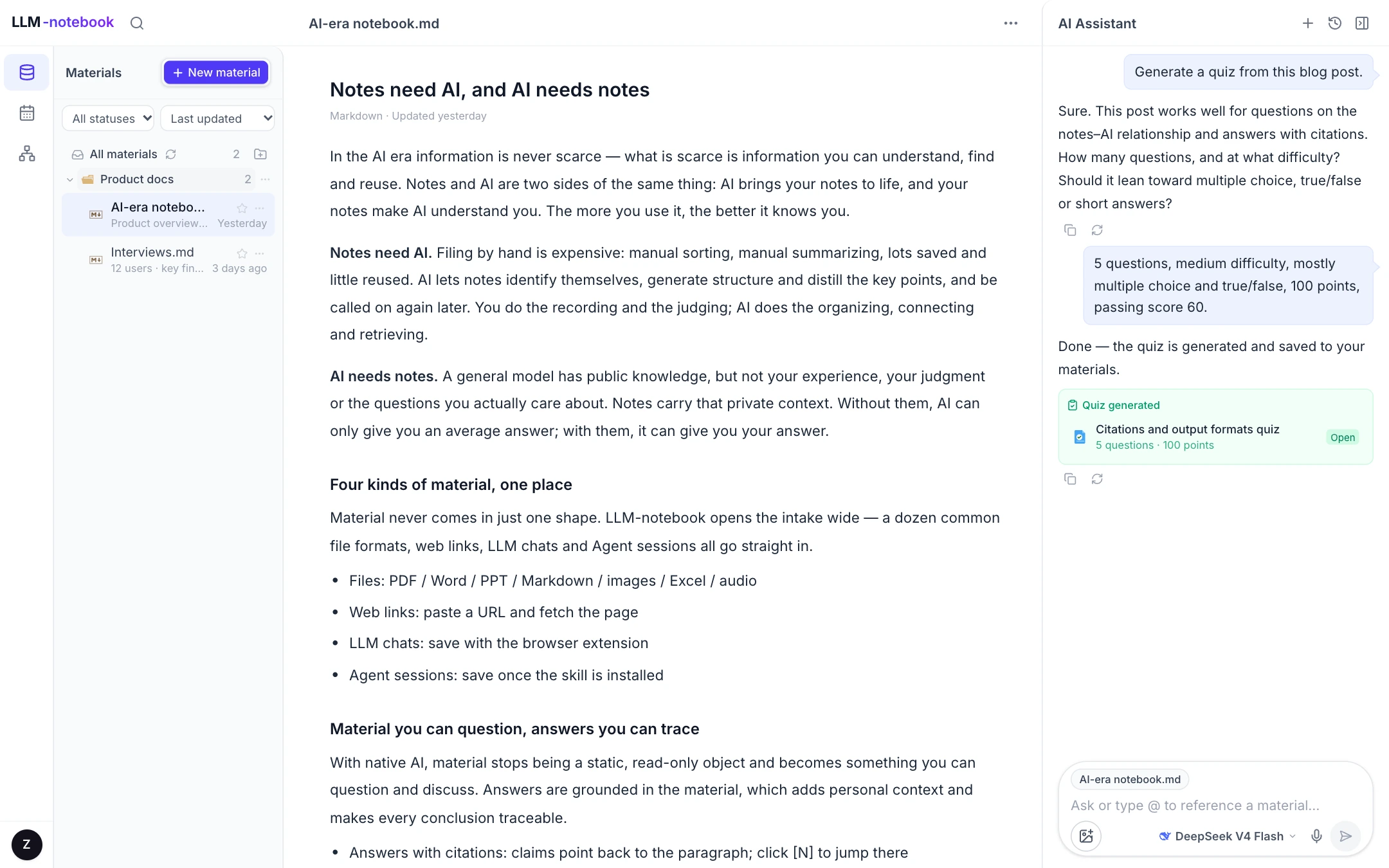
The finished quiz is saved to your library and ready to open.
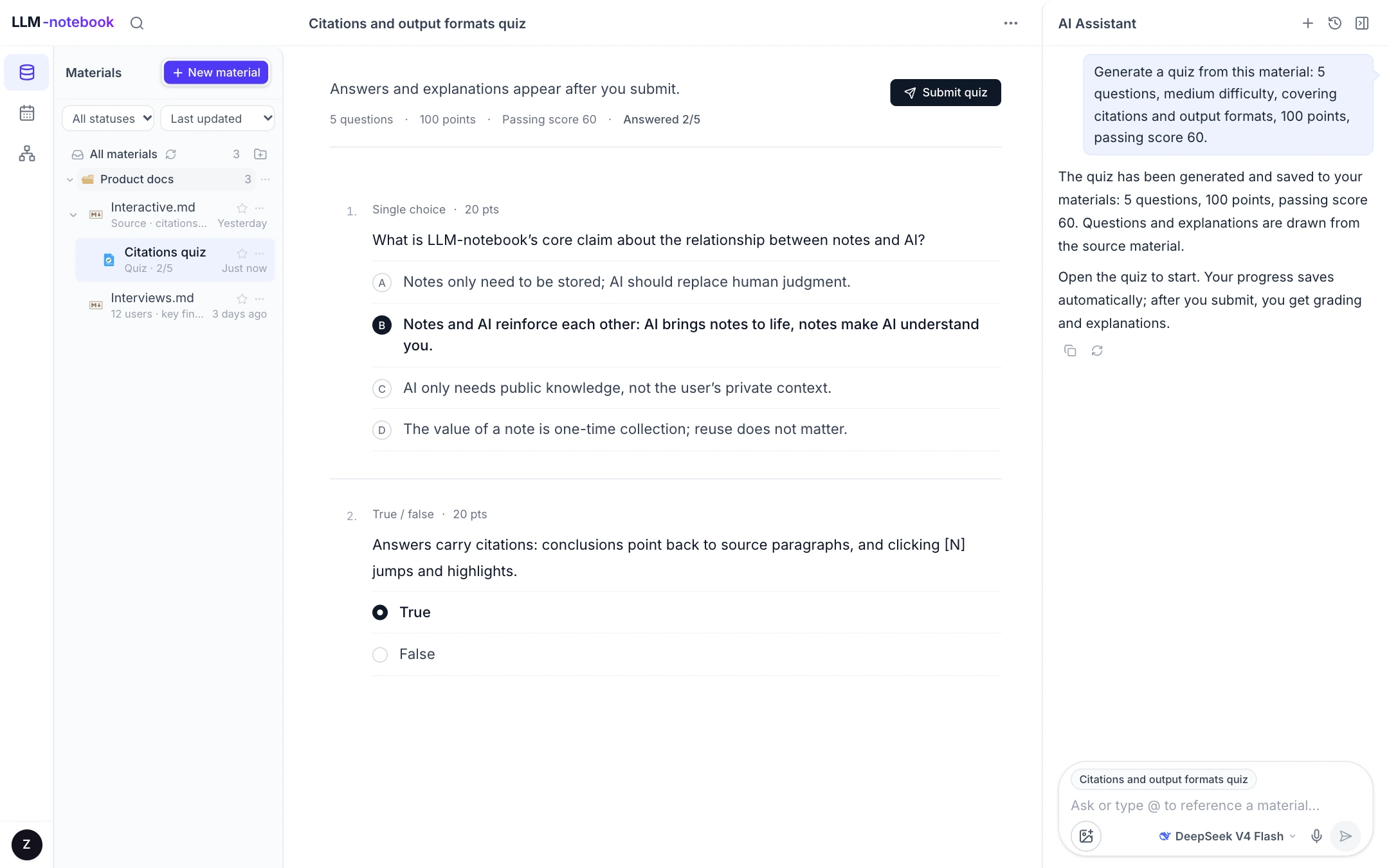
Two: answer it like a paper quiz
The quiz uses a simple, paper-like layout. Your progress saves automatically, and you can press Ctrl/Cmd+S at any time. If you switch to another material or close the page, you can pick up where you left off next time.
Three: see your score and explanations
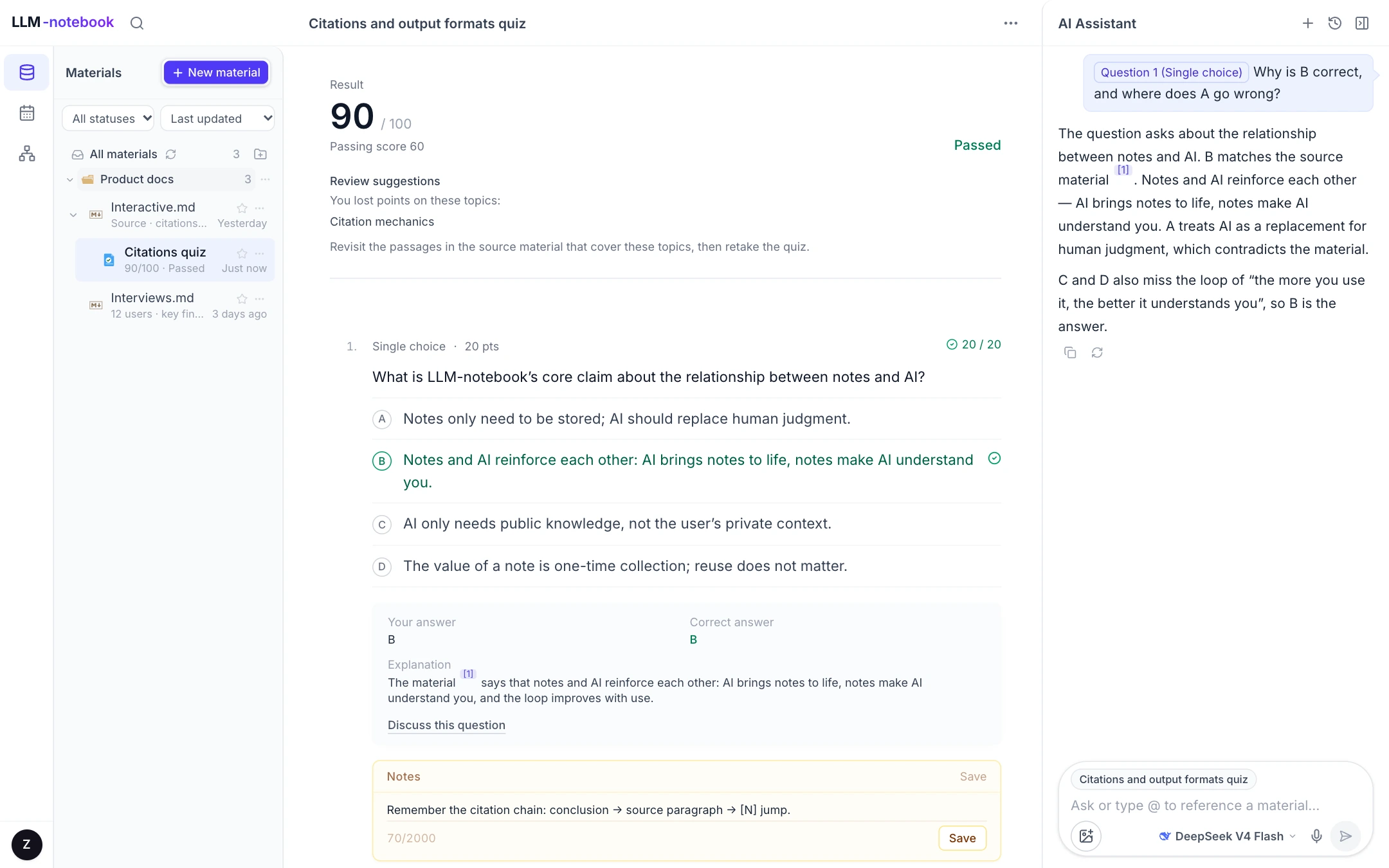
After you submit, the quiz is marked immediately, with a total score, pass status and points for each question.
- Choice questions clearly show your selection and the correct answer;
- Short answers receive a score and brief AI feedback;
- Every question comes with the answer and an explanation;
- Topics where you lost points are collected so you know what to review first.
Explanations sit in a light-gray area below the question, visually separate from the prompt. You can also keep your own review note under each question; it saves automatically.
Four: ask AI about a question you missed
If a question is still unclear, choose “Discuss this question” at the end of the explanation. The relevant context is added to the AI chat box on the right automatically. Add whatever you want to ask, such as “why was this wrong” or “how should I think about this step”, and keep the discussion going until it is clear.
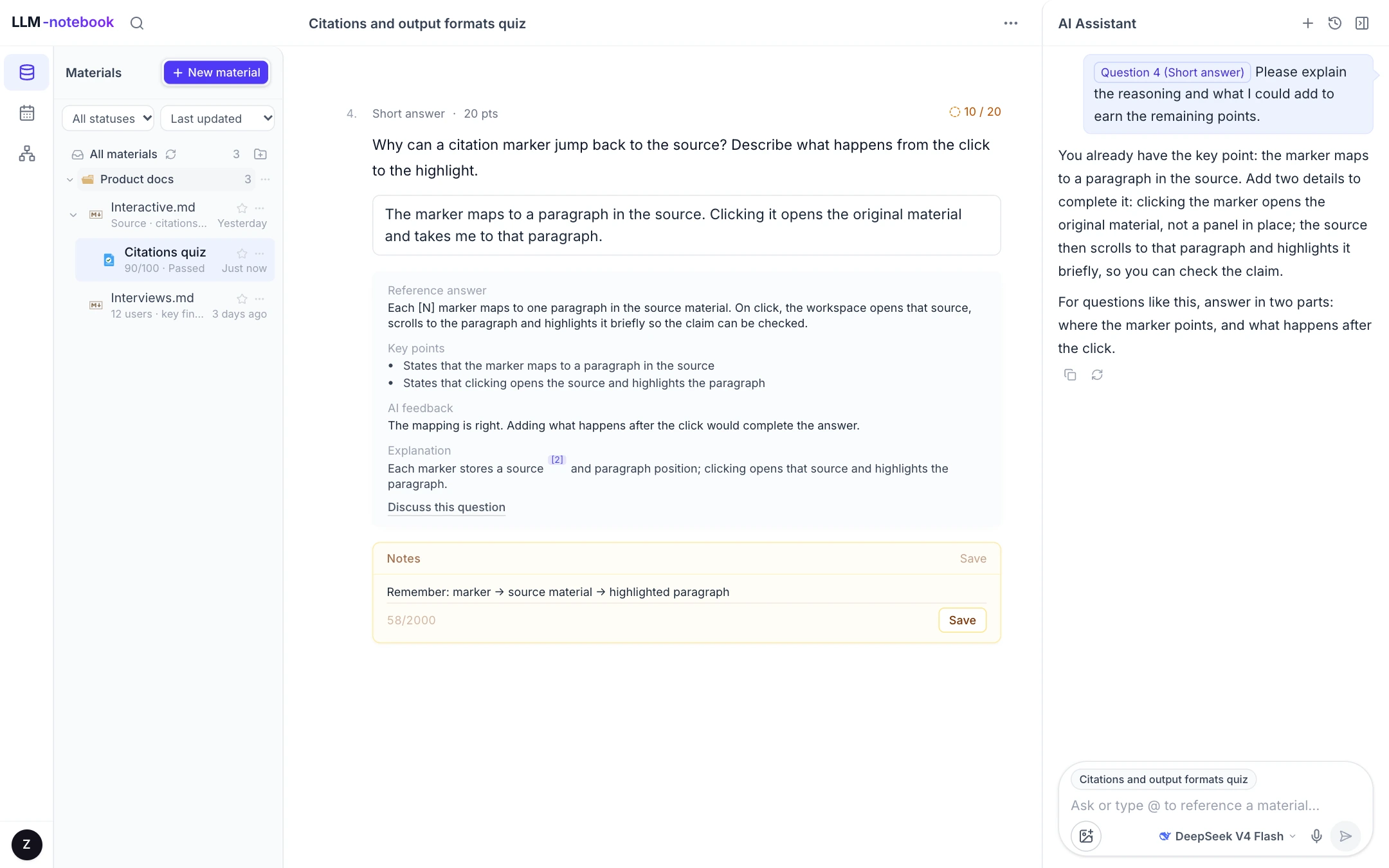
When an answer refers to a question, it can carry a citation marker; click it to return to the question.
Five: export when you need it
A quiz exports to PDF or Word. Choose one of two versions before exporting:
- Blank paper: questions and answer space only, good for printing or sharing;
- With answers and grading: your answers, score, correct answers, explanations and notes, good for your own record.
A quiz that has not been submitted can only be exported as a blank paper.
Get started
Project home: llm-notebook.com
Sign up with Google, WeChat or email (registration page). New users get a free 14-day trial plus $0.69 of token credit.
If you run into any problem while using it, you can submit feedback from Account → Feedback, or contact us directly by email at llm-notebook@intlinkbridge.com. Thanks for your support and feedback!
Keep reading
 Product
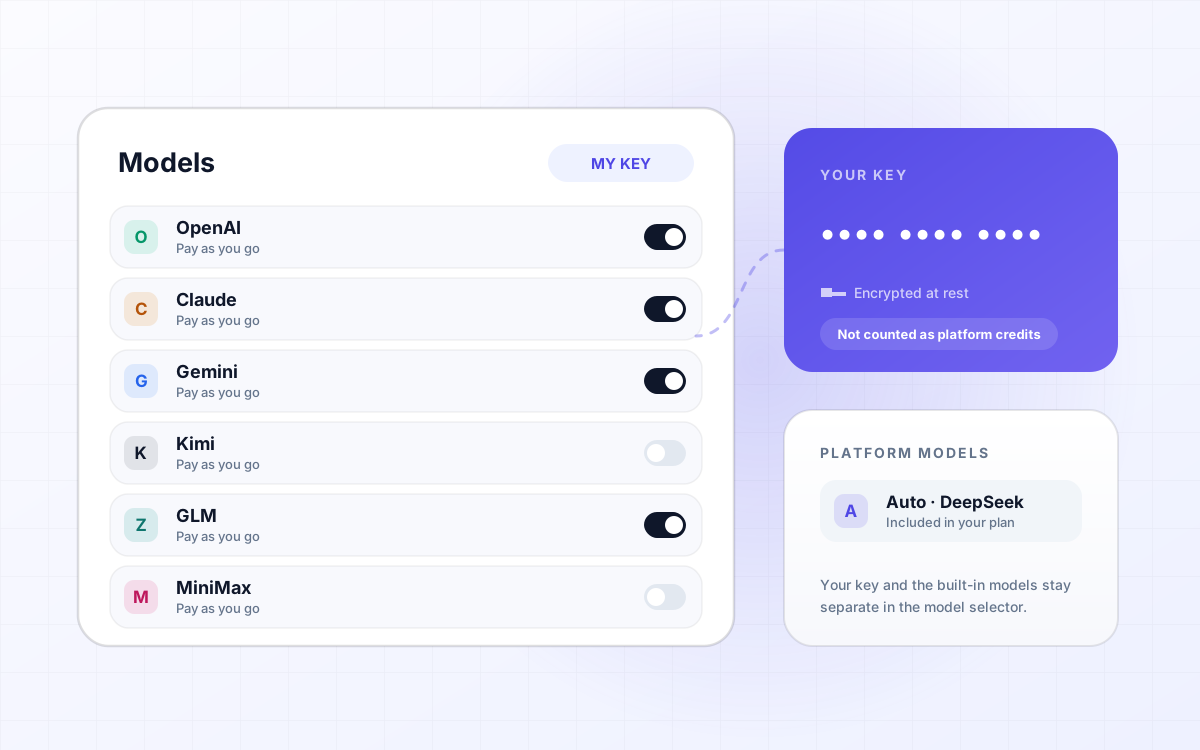
LLM-notebook: Support for bring-your-own model API Key (BYOK)
LLM-notebook now supports bring-your-own-key (BYOK) for DeepSeek, Qwen, OpenAI, Claude, Gemini, Kimi, GLM and MiniMax. Calls made with your key are billed by the provider and do not consume LLM-notebook token credits; LLM-notebook built-in models and BYOK models stay clearly separated in the selector.
Read post Changelog
From the first version on main to today, logged week by week. Every entry comes from a real commit — features, but also the mistakes and the rollbacks.
Read post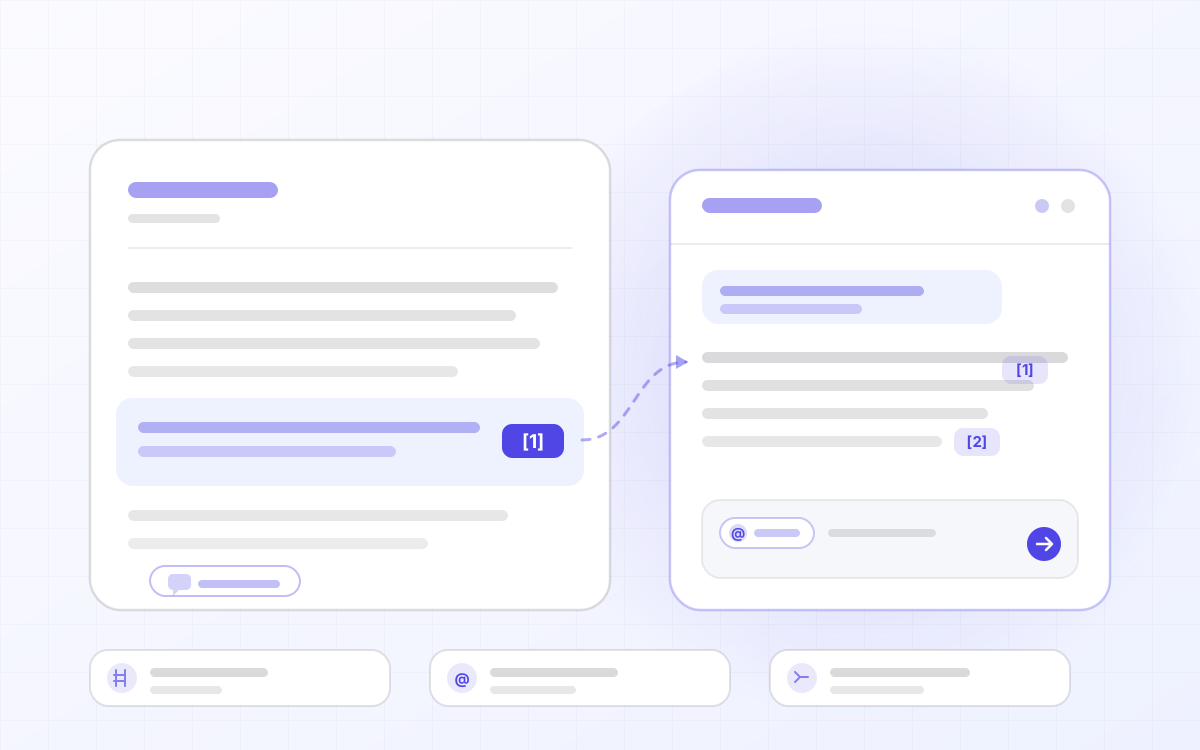 Ask
LLM-notebook: material you can question, answers you can trace
AI is changing how we learn from knowledge. In LLM-notebook, material is more than a static object you can read and search: it can be understood and questioned flexibly and personally, which greatly improves the efficiency of learning. On that basis, answers with citations make conclusions traceable, @-mentioning material organizes context across sources, and asking from a selection narrows inquiry to a single word. What emerges in the conversation can also settle into notes, so knowledge compounds.
Read post